Authentication with Amplify
- Open the amplify/auth/resource.ts file and replace its content with the code below to configure authentication for the application:
import { defineAuth } from '@aws-amplify/backend';

export const auth = defineAuth({
  loginWith: {
    email: true,
  },
  userAttributes: {
    preferredUsername: {
      mutable: true,
      required: false,
    },
  },
});
loginWith.email: users sign up and sign in with their email.preferredUsername: the Cognitopreferred_usernameattribute, used to store the user’s display name.
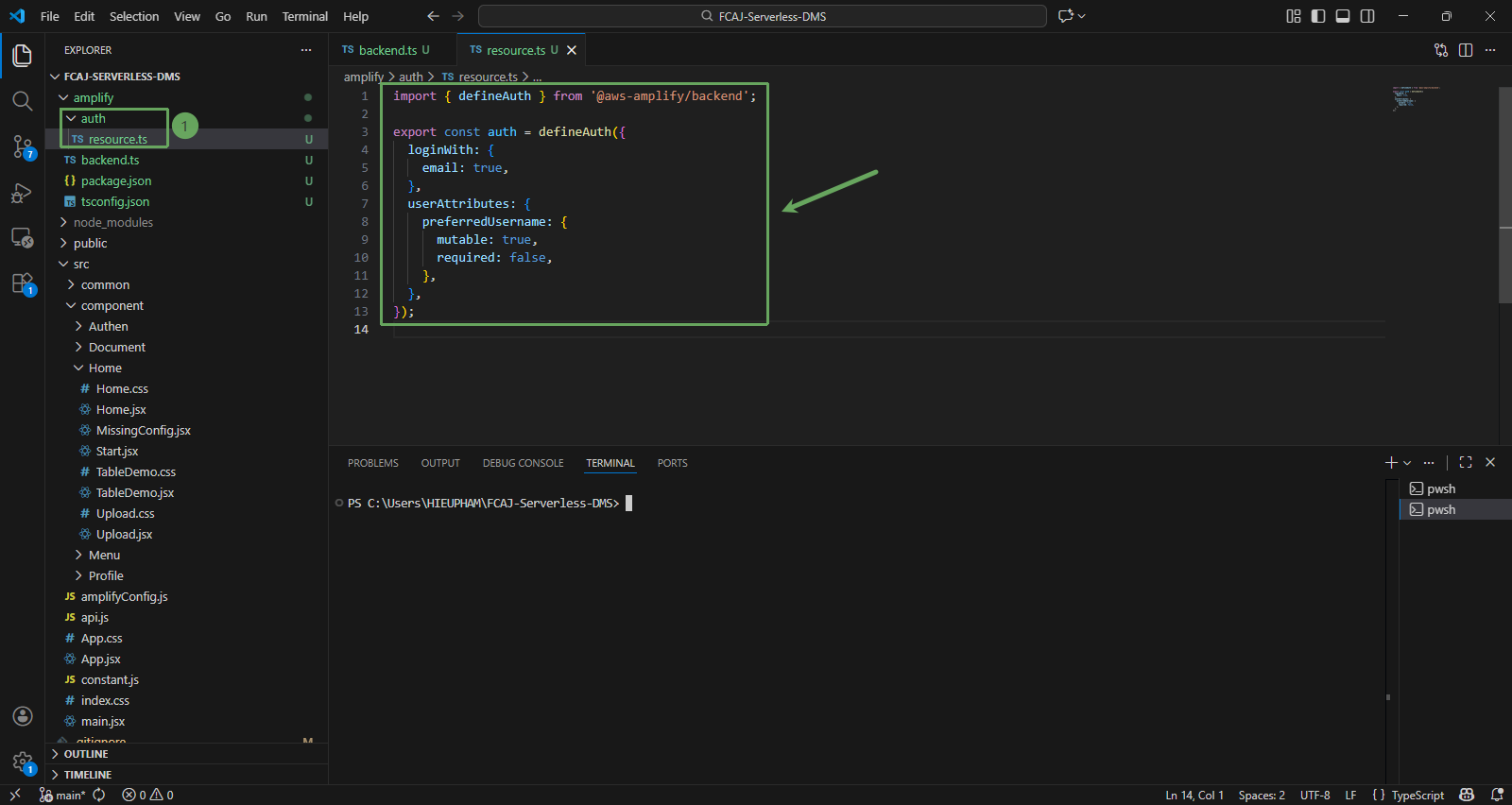
Amplify Gen 2 does not support signing in with only a username. That is why the application uses email to sign in and stores the display name in the preferred_username attribute.
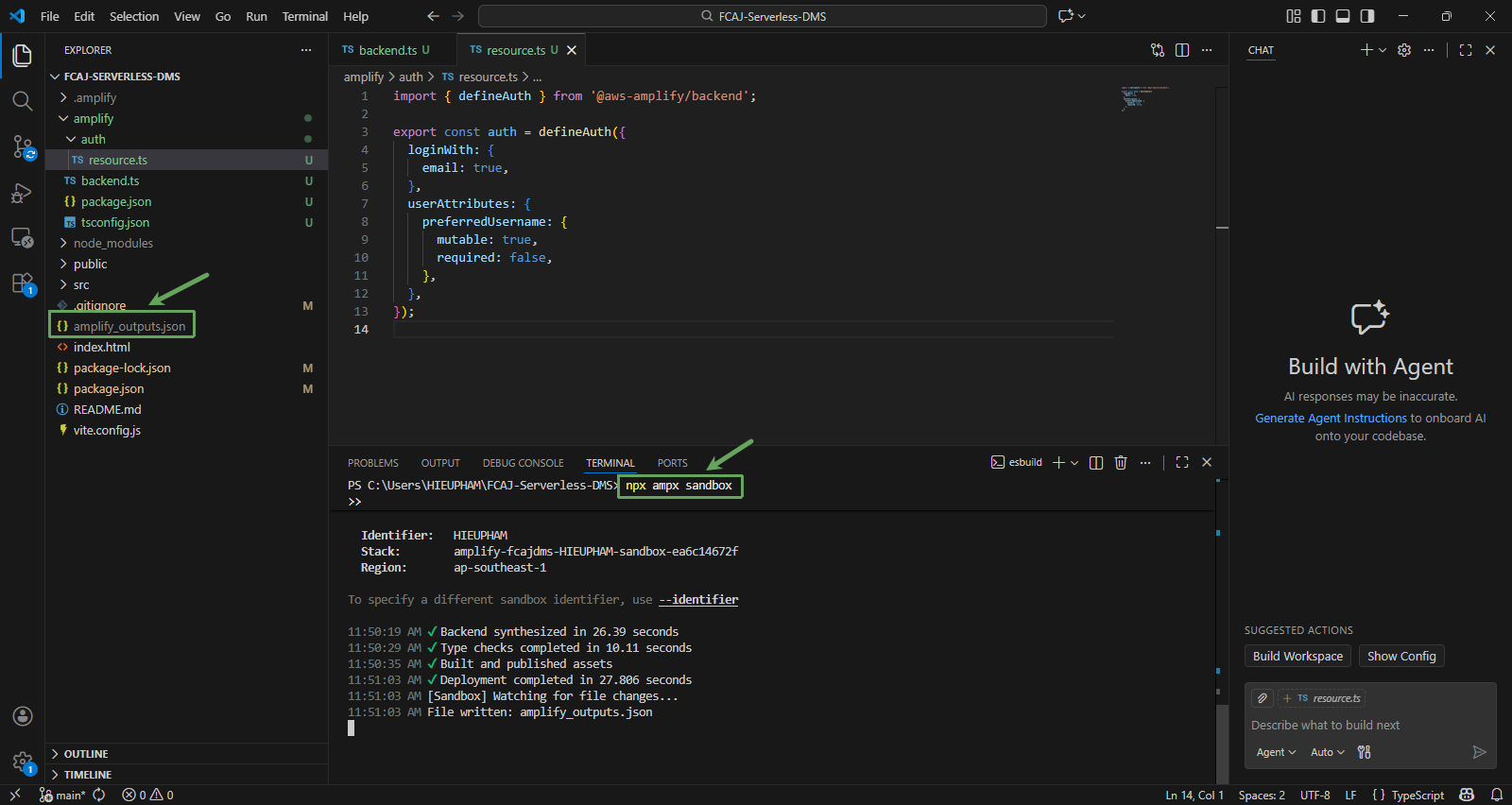
- Run the following command in the root folder of the project to deploy the backend to AWS:
npx ampx sandbox
- Wait until the terminal shows Deployment completed and File written: amplify_outputs.json. The first deployment takes about 2 - 3 minutes.
- The amplify_outputs.json file is created in the root folder of the project. This file contains the User Pool, User Pool Client and Identity Pool information that the application uses to connect to Amazon Cognito.
- Keep this terminal running. The sandbox keeps watching the amplify folder and automatically redeploys every time you save a file.
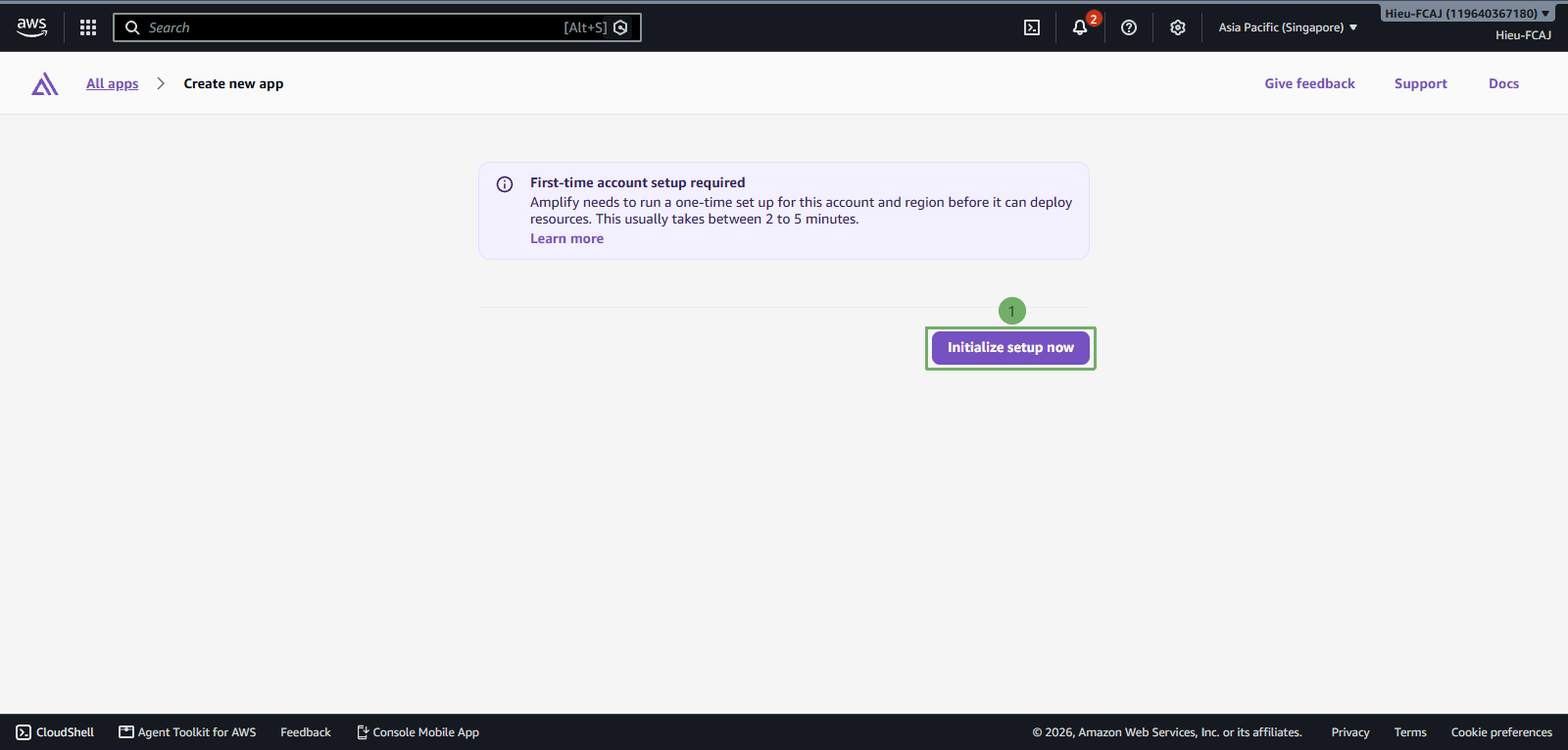
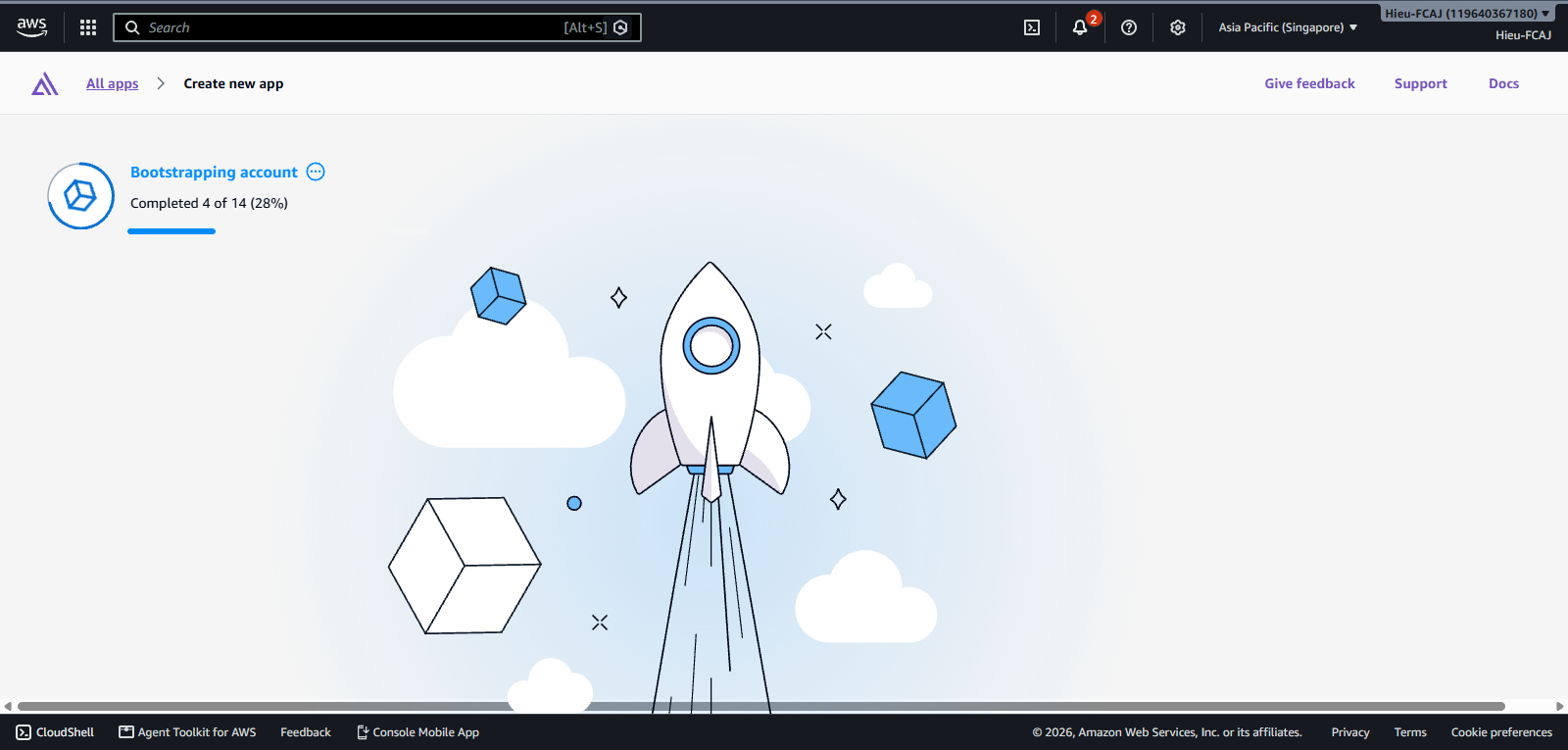
If this is the first time you use the AWS CDK or Amplify Gen 2 in this region, the terminal asks you to bootstrap the account. Follow the link in the terminal to open the Amplify console (or the terminal opens the console for you), click Initialize setup now and wait for it to finish, then run npx ampx sandbox again.
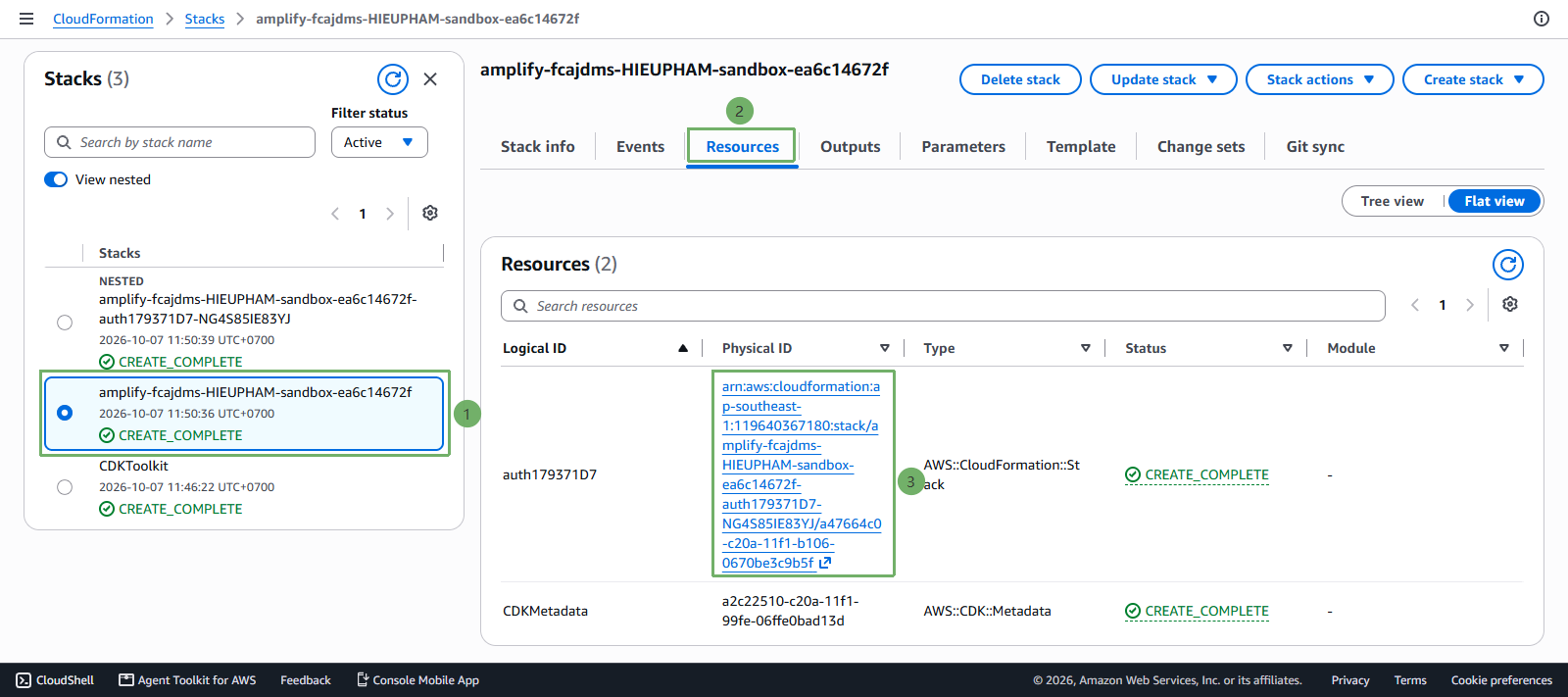
- Open the CloudFormation console to check if the stack has been created.
- Select the stack whose name starts with amplify-fcajdms- and ends with -sandbox-…. This stack has a nested stack for the auth part.
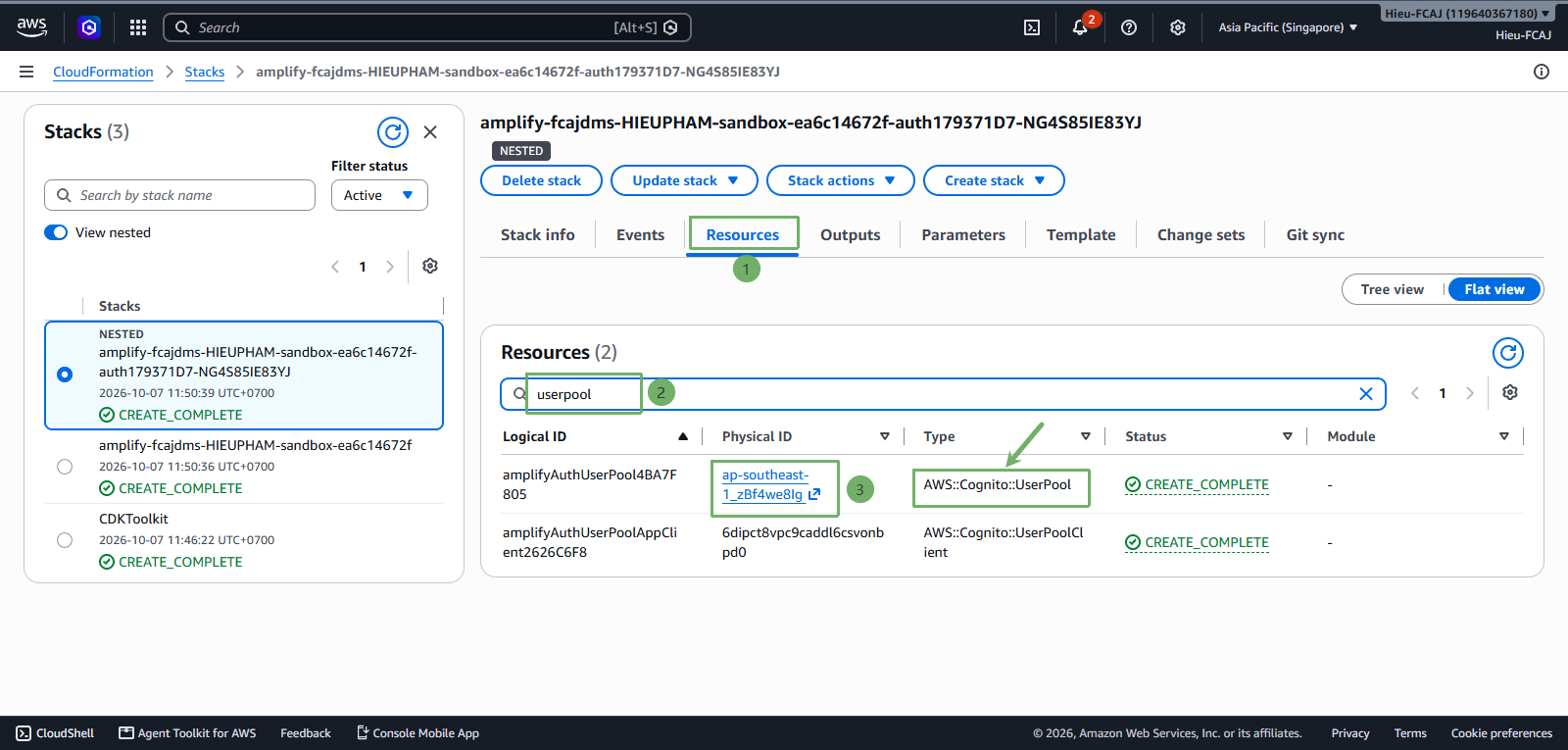
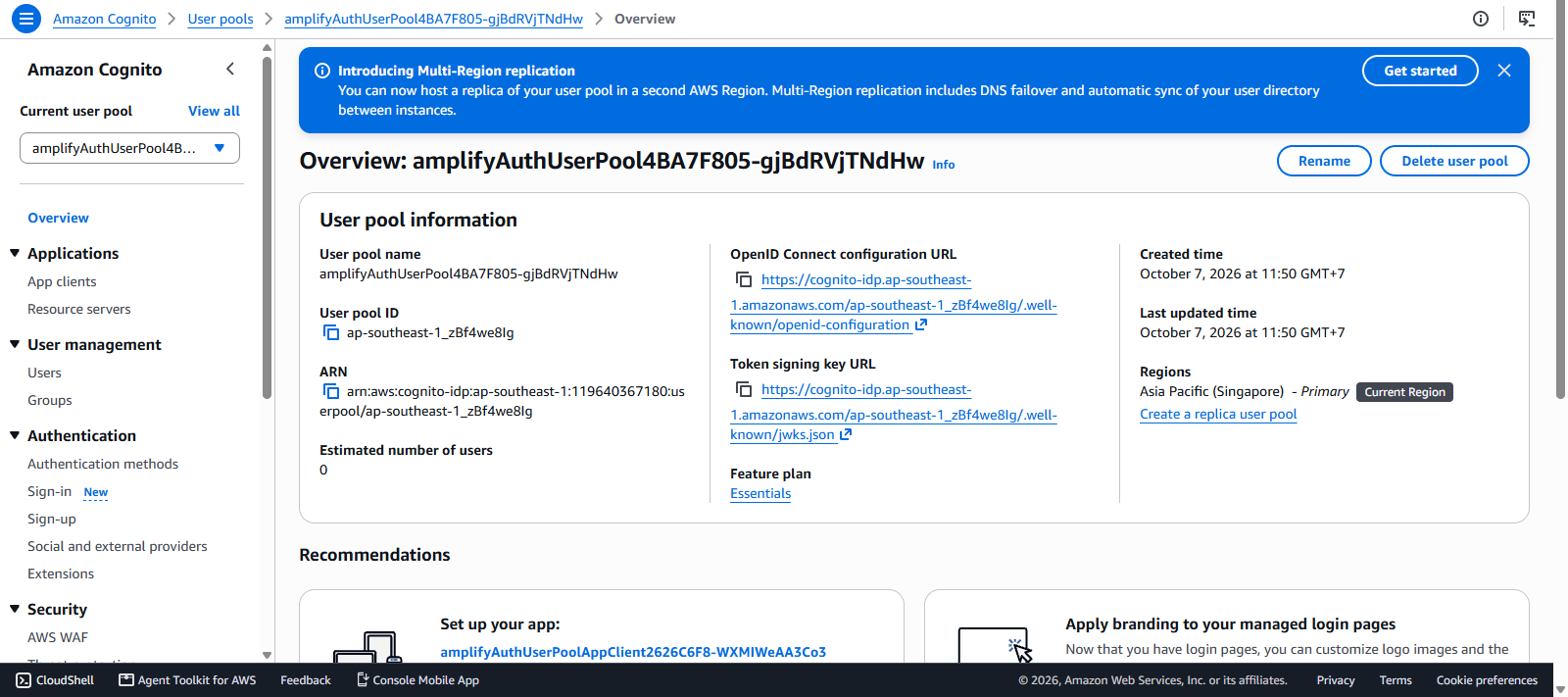
- Open the auth nested stack, select the Resources tab, then click the Physical ID of AWS::Cognito::UserPool to open the Cognito User Pool console.
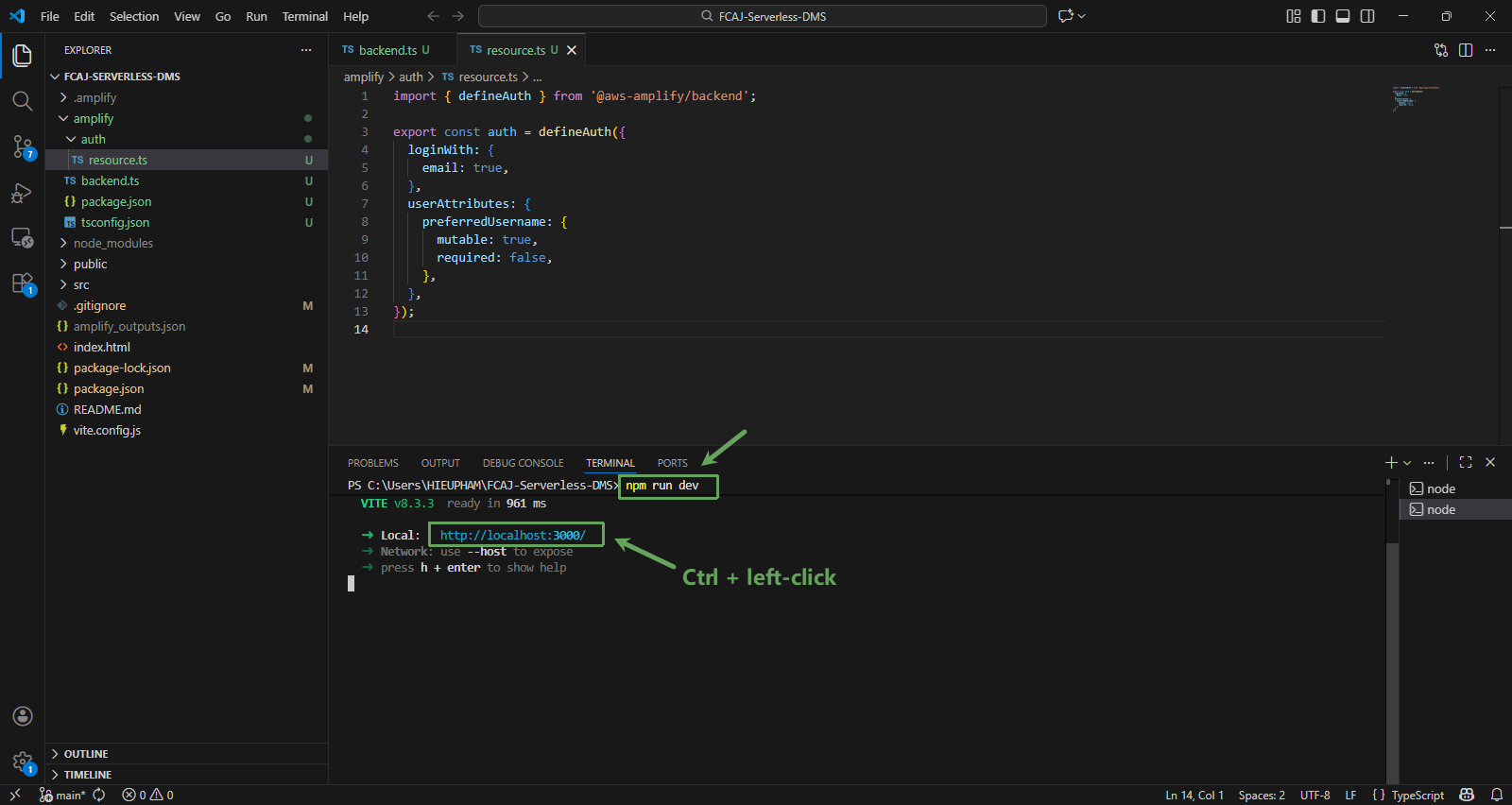
- Open a second terminal in the root folder of the project, run the following command to start the application:
npm run dev
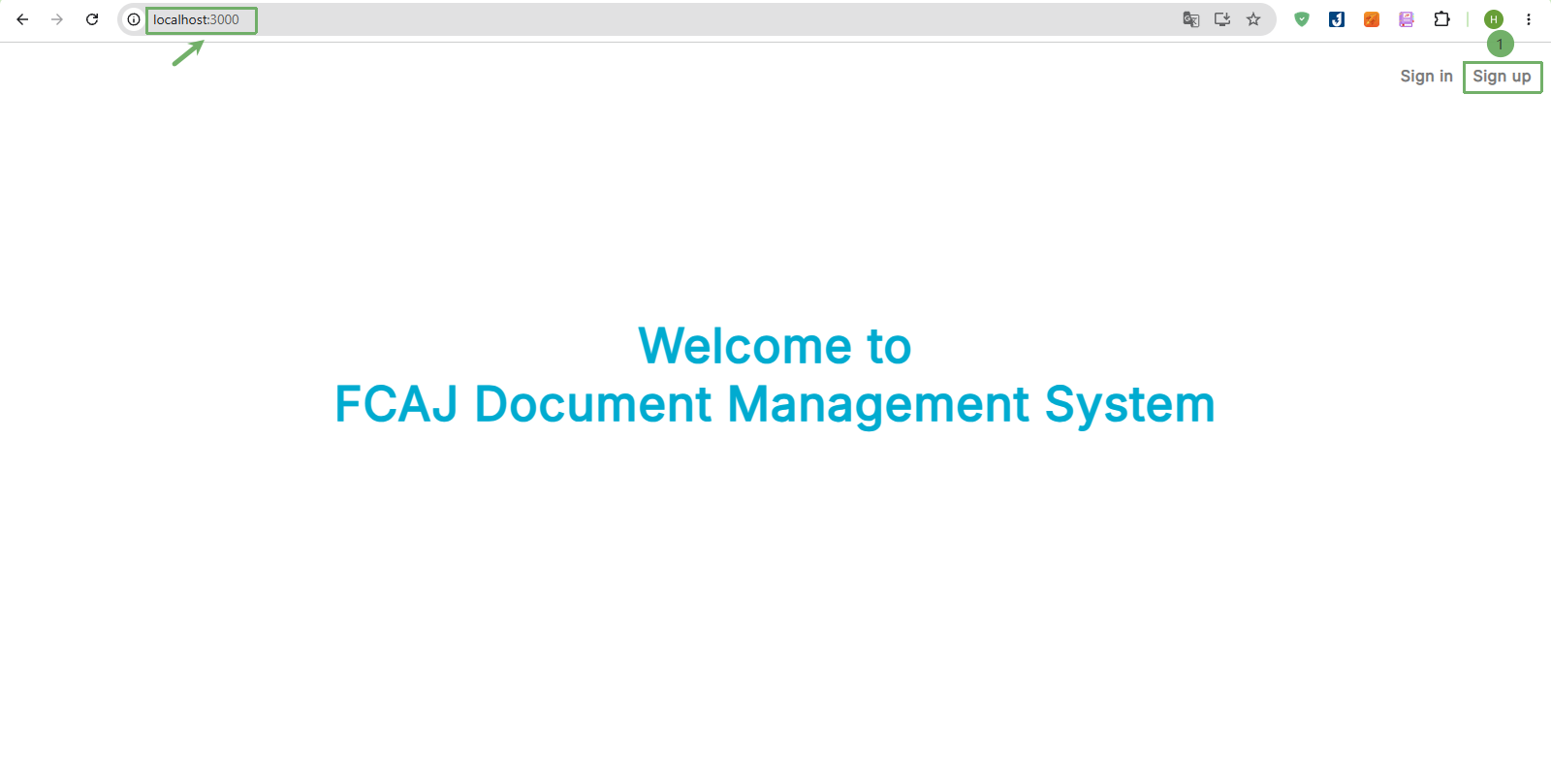
- Open http://localhost:3000
- Click Sign up to register a new account.
The application calls the API to get the document list, but we have not created the API yet, so you will see errors in the browser Console. This is expected, we will create the API in the next workshop.
- Enter the user information:
- Display name (Display name), for example:
admin - Enter your email.
- Password, for example:
Admin@123 - Click Sign up
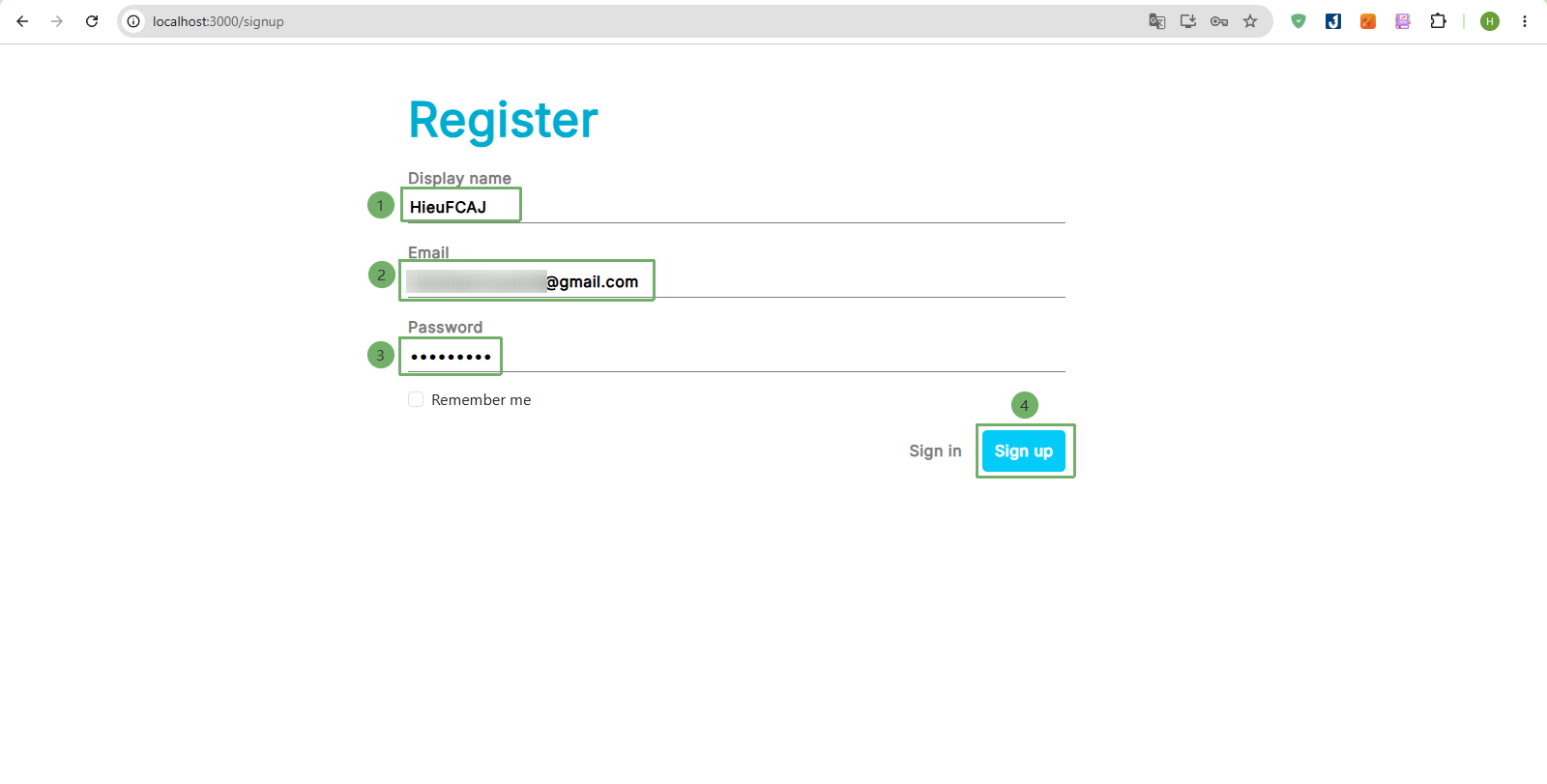
The password must have at least 8 characters, including uppercase letters, lowercase letters, numbers and special characters. This is the default password policy of Amplify Gen 2.
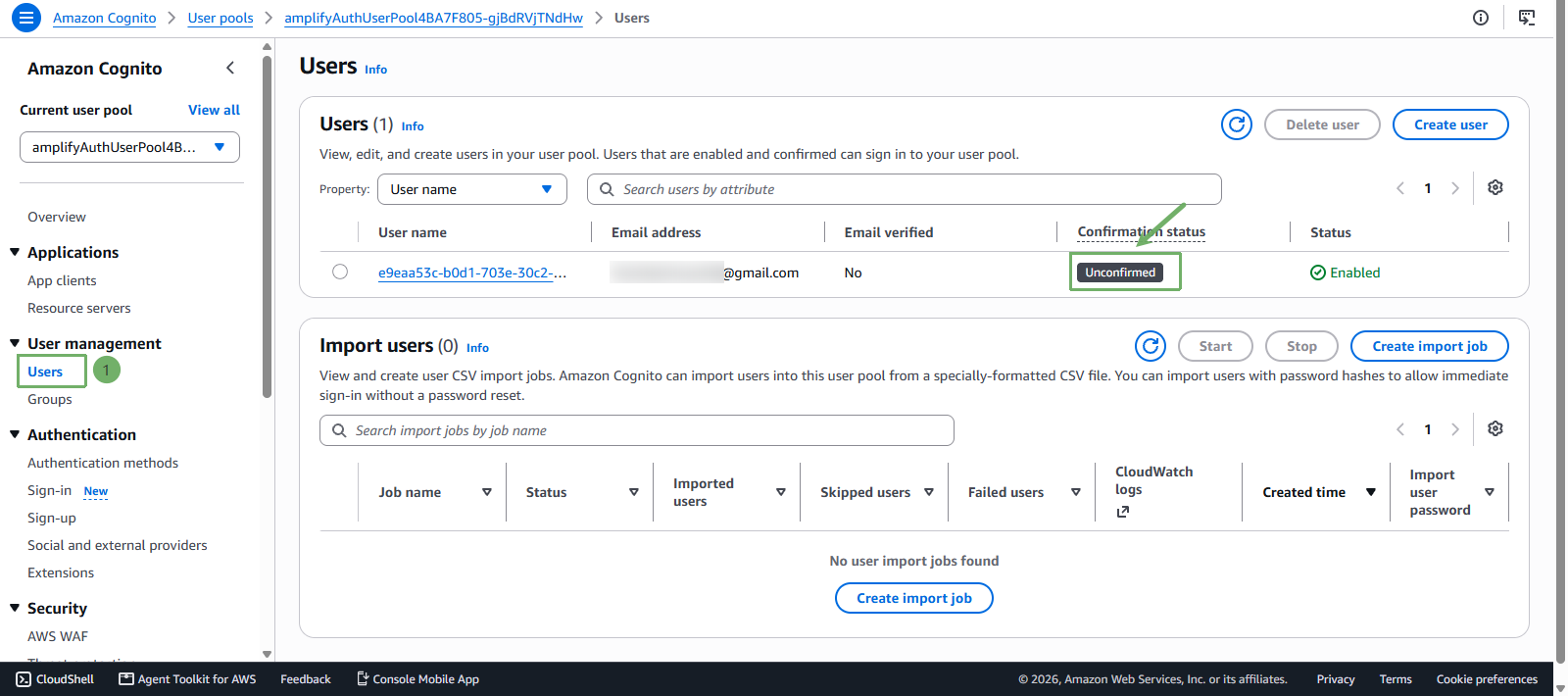
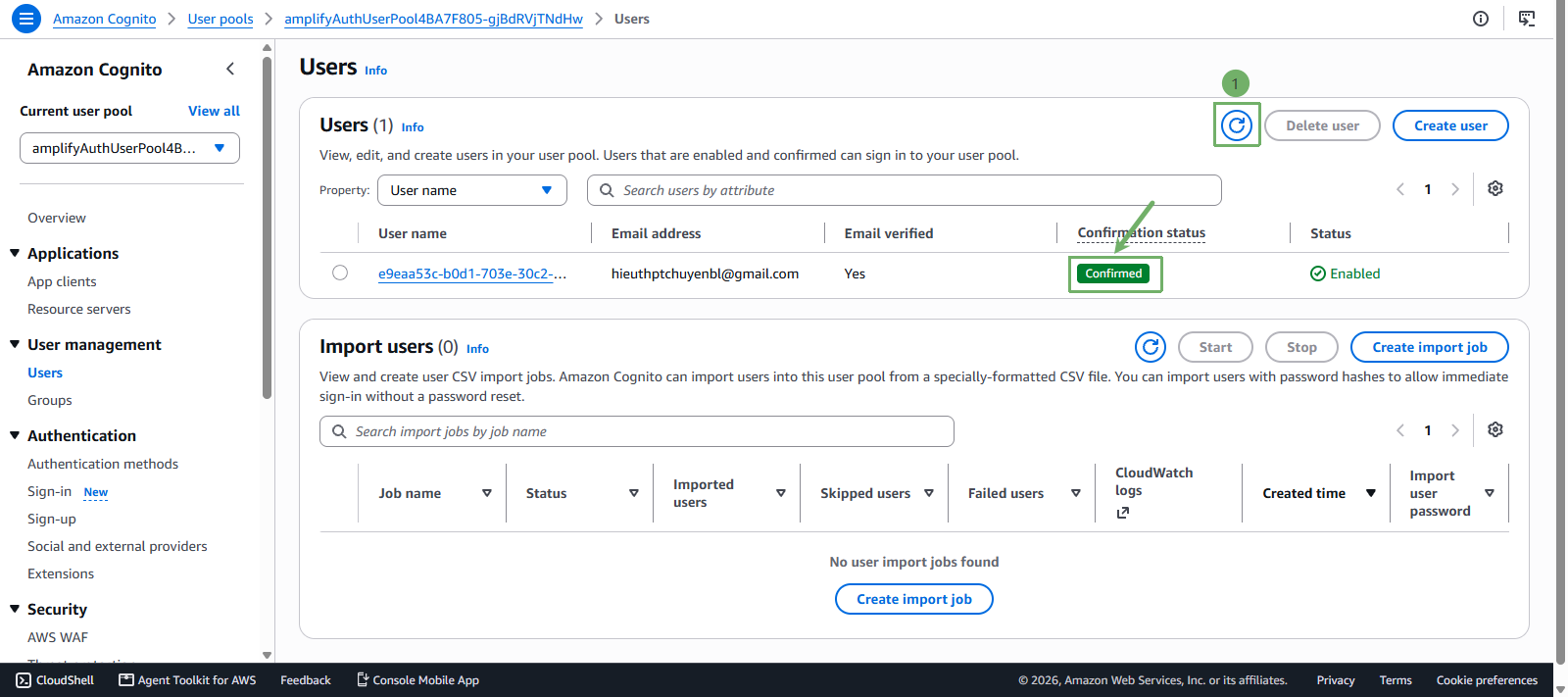
- Go back to the Cognito User Pool console, select User management -> Users in the left menu. You will see a registered user with the Unconfirmed status.
- Open your email to get the confirmation code that was sent automatically.
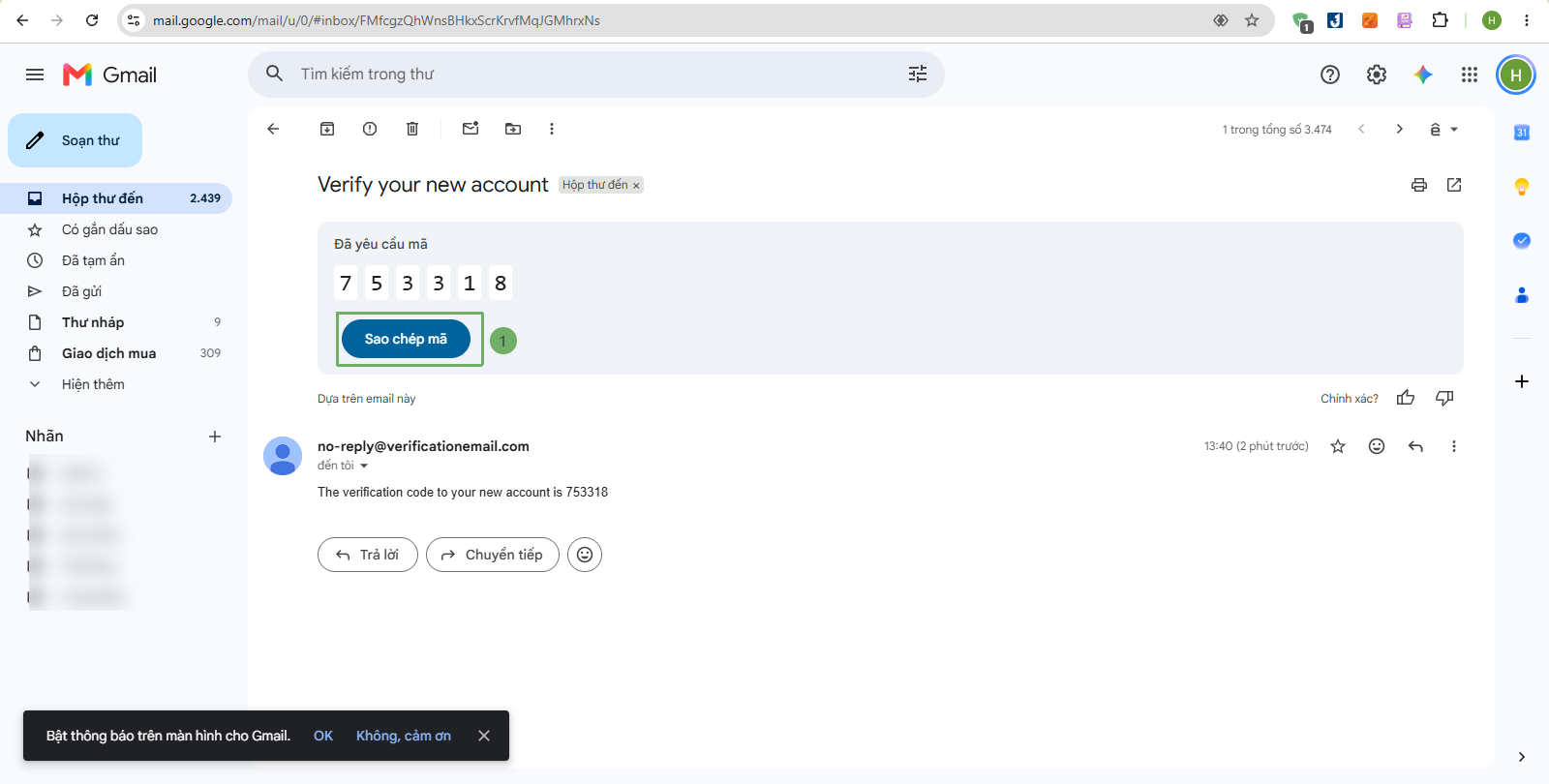
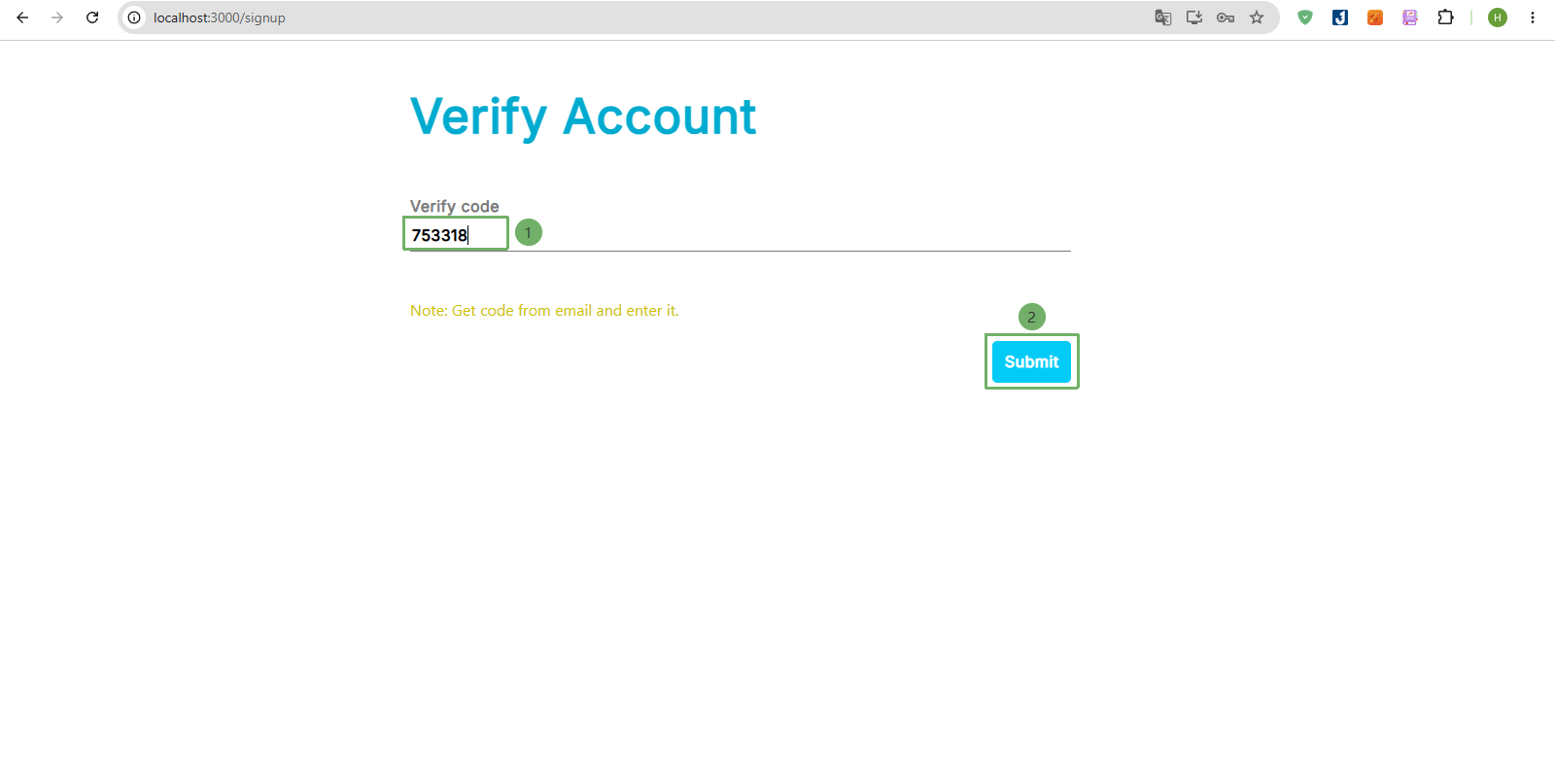
- Enter the confirmation code in the application, then click Submit
- Go back to the Cognito User Pool console and click the Refresh icon. You will see the user with the Confirmed status.
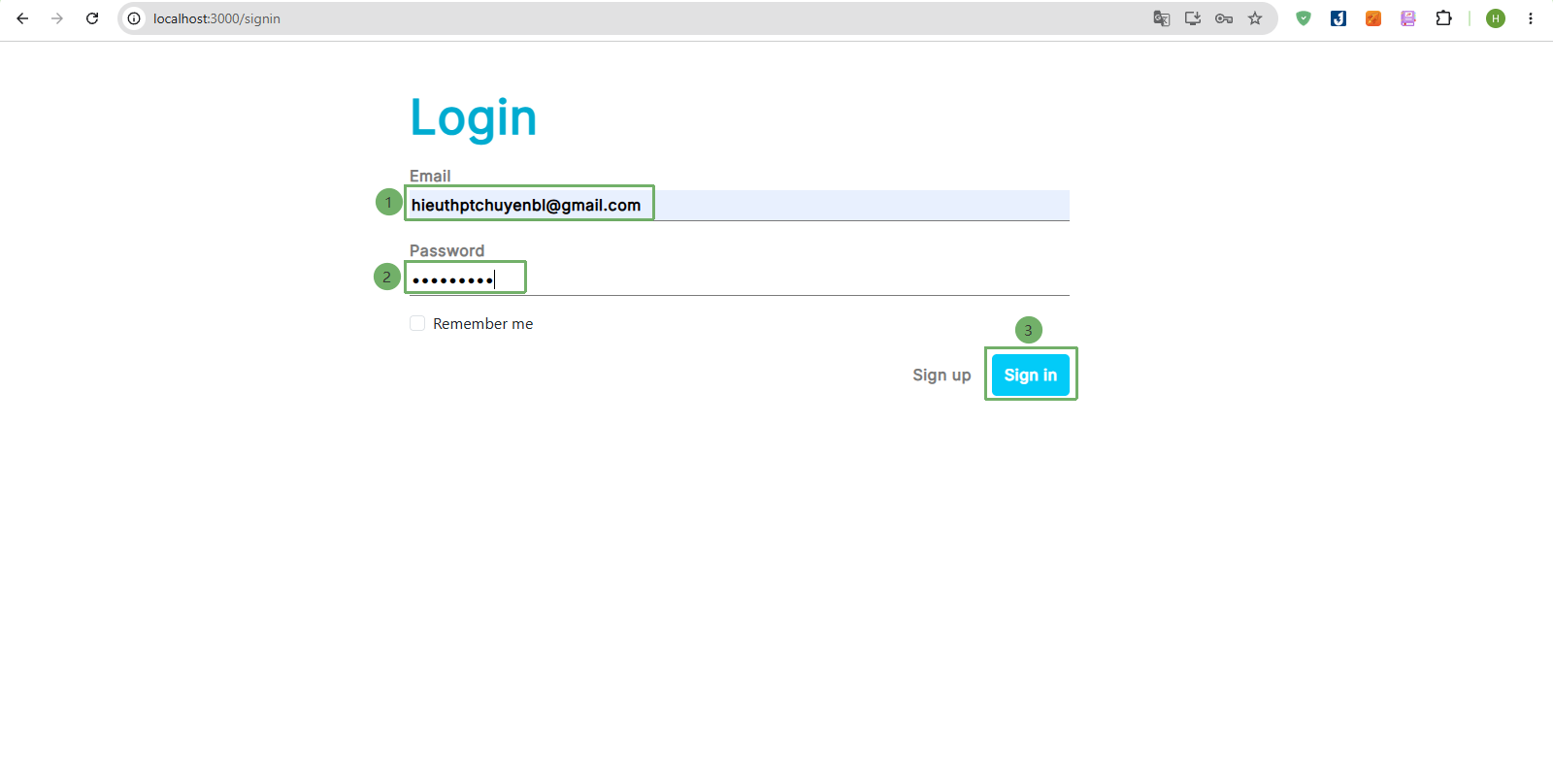
- Sign in to the application with the email and password you just registered.
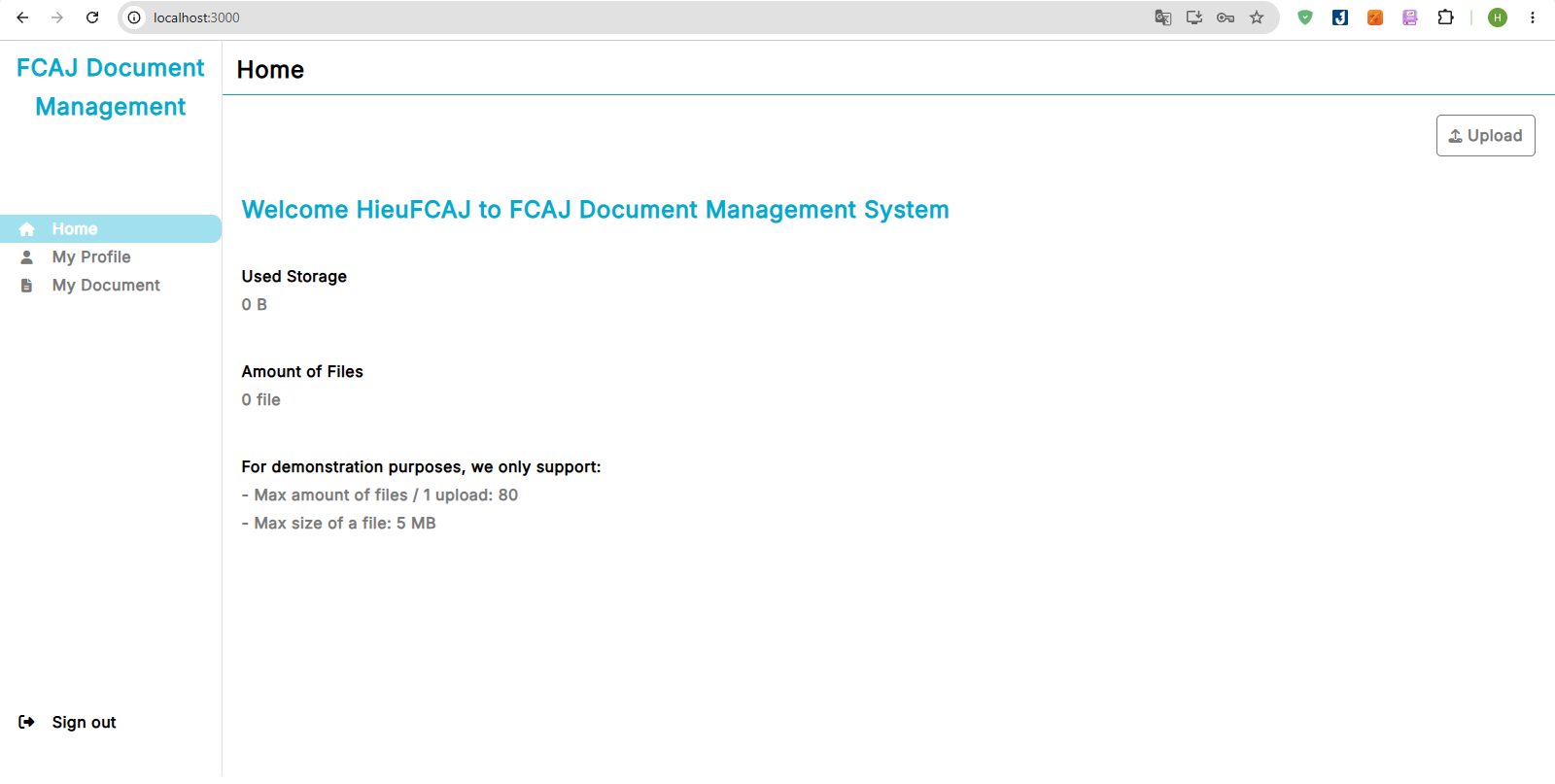
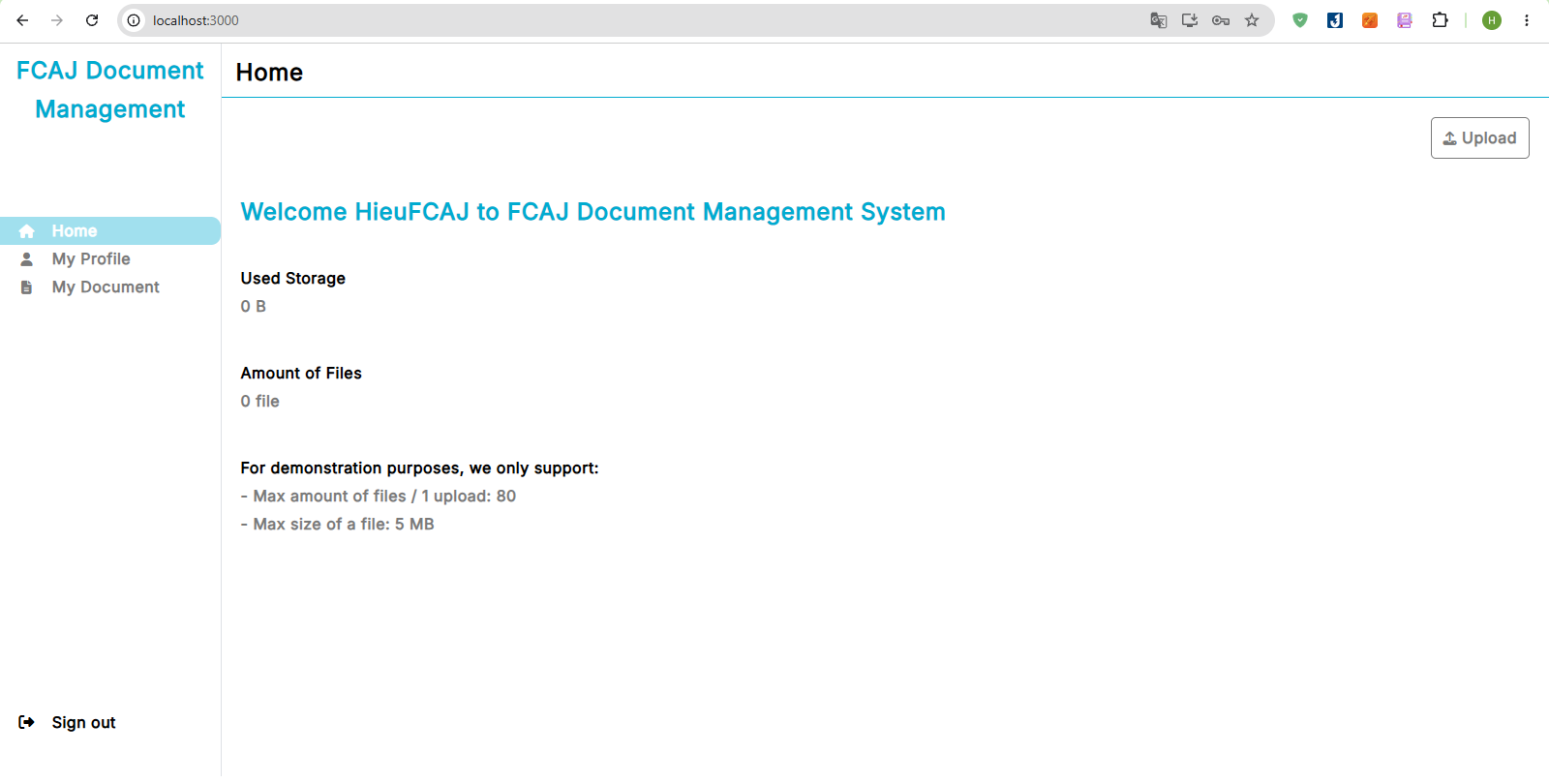
- You have signed in successfully. The Home page shows your display name.
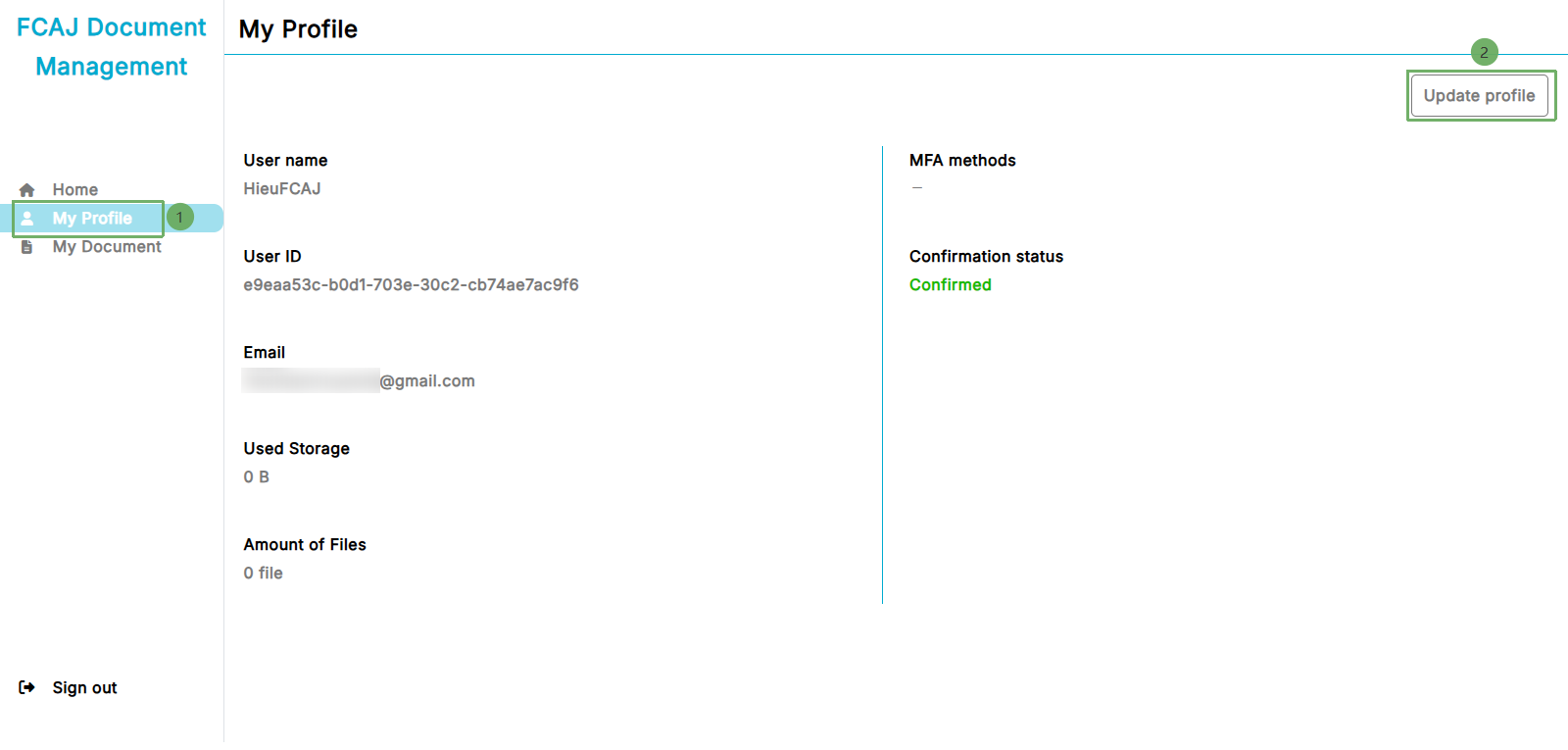
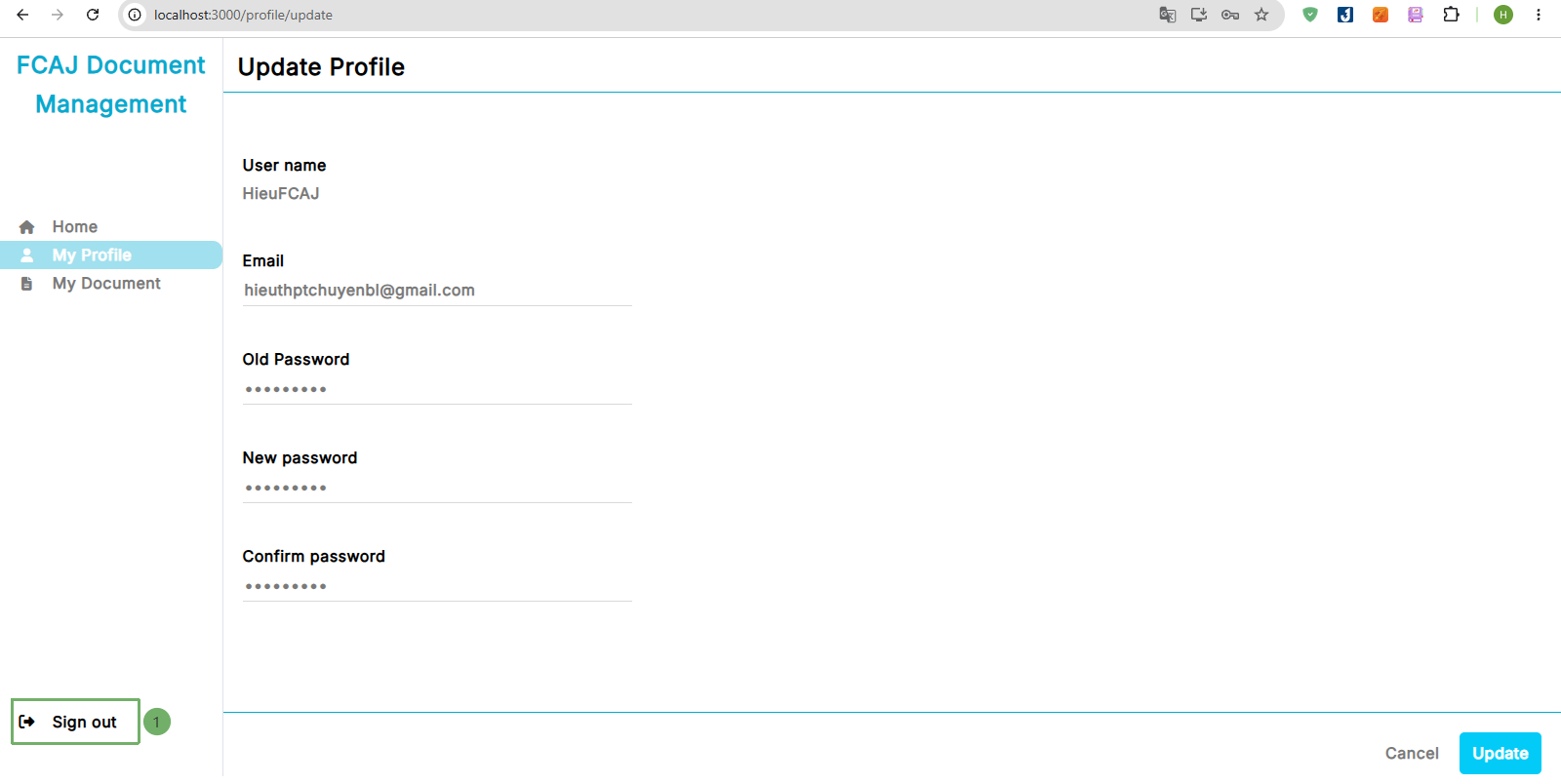
- Select My Profile in the left menu, then click Update profile
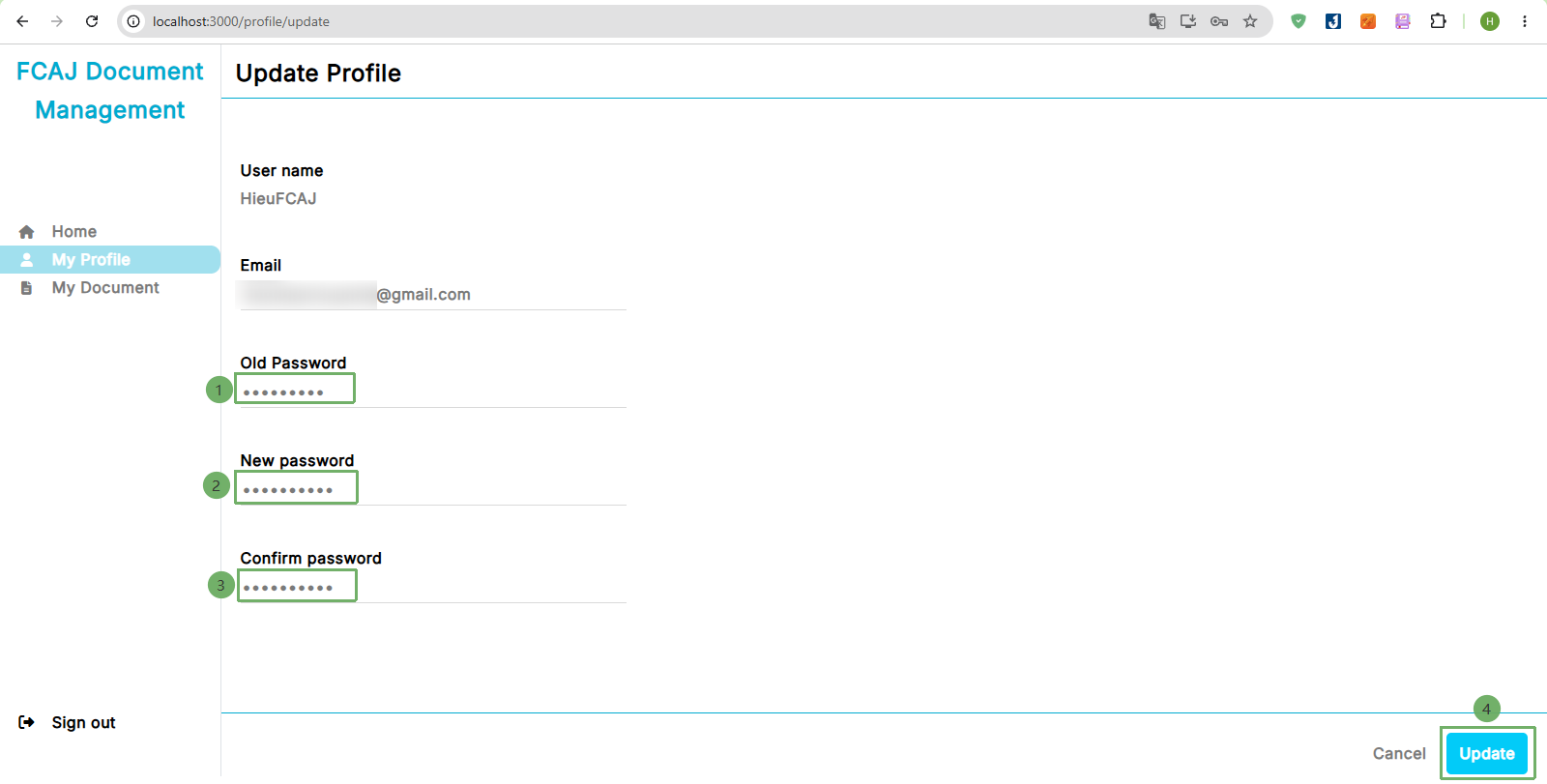
- Enter the old password, the new password and confirm the new password. Then click Update
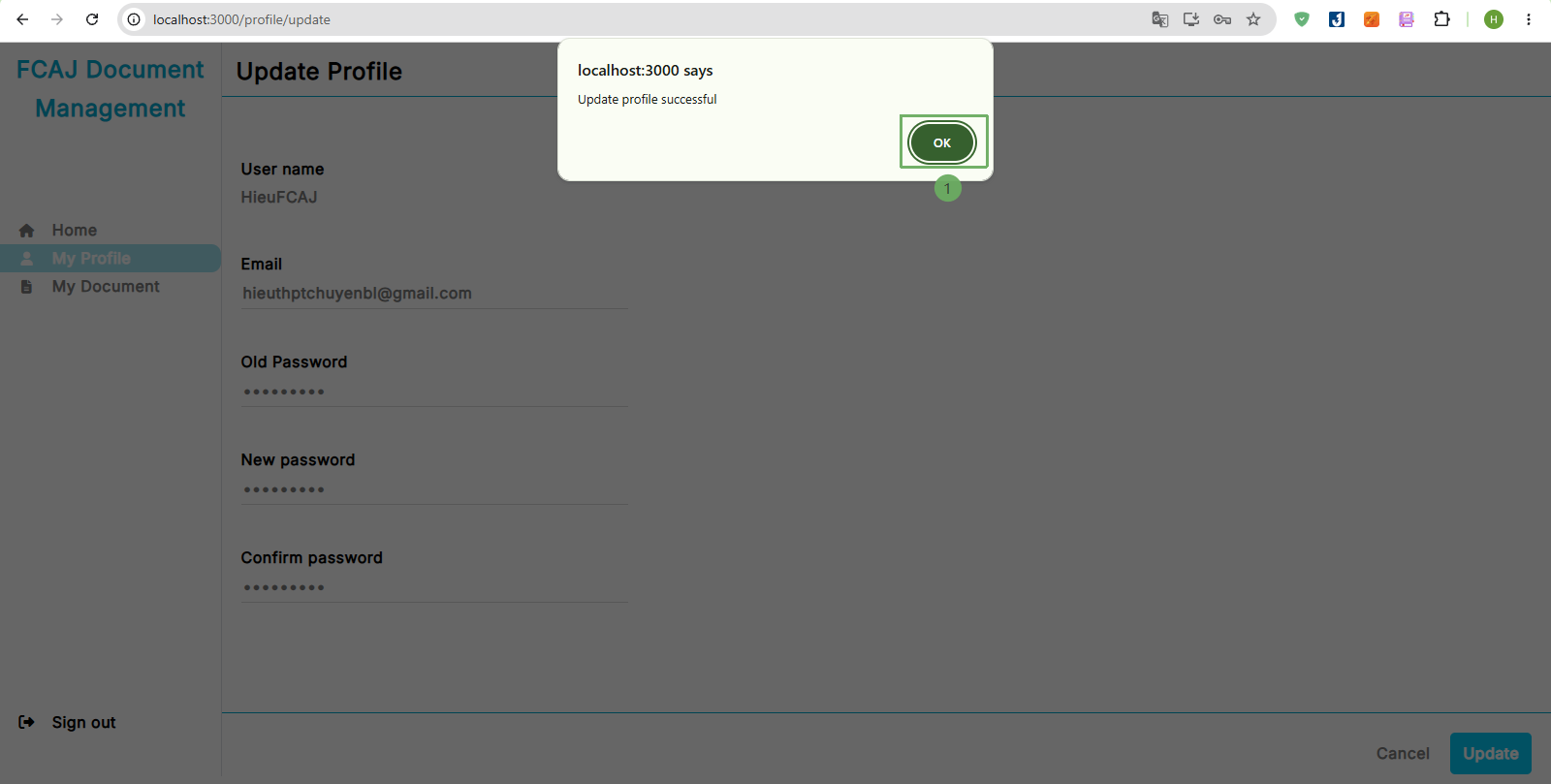
- Click OK
- Click Sign out to sign out
- Click Sign in to sign in again. Enter the email and the new password, then click Sign in
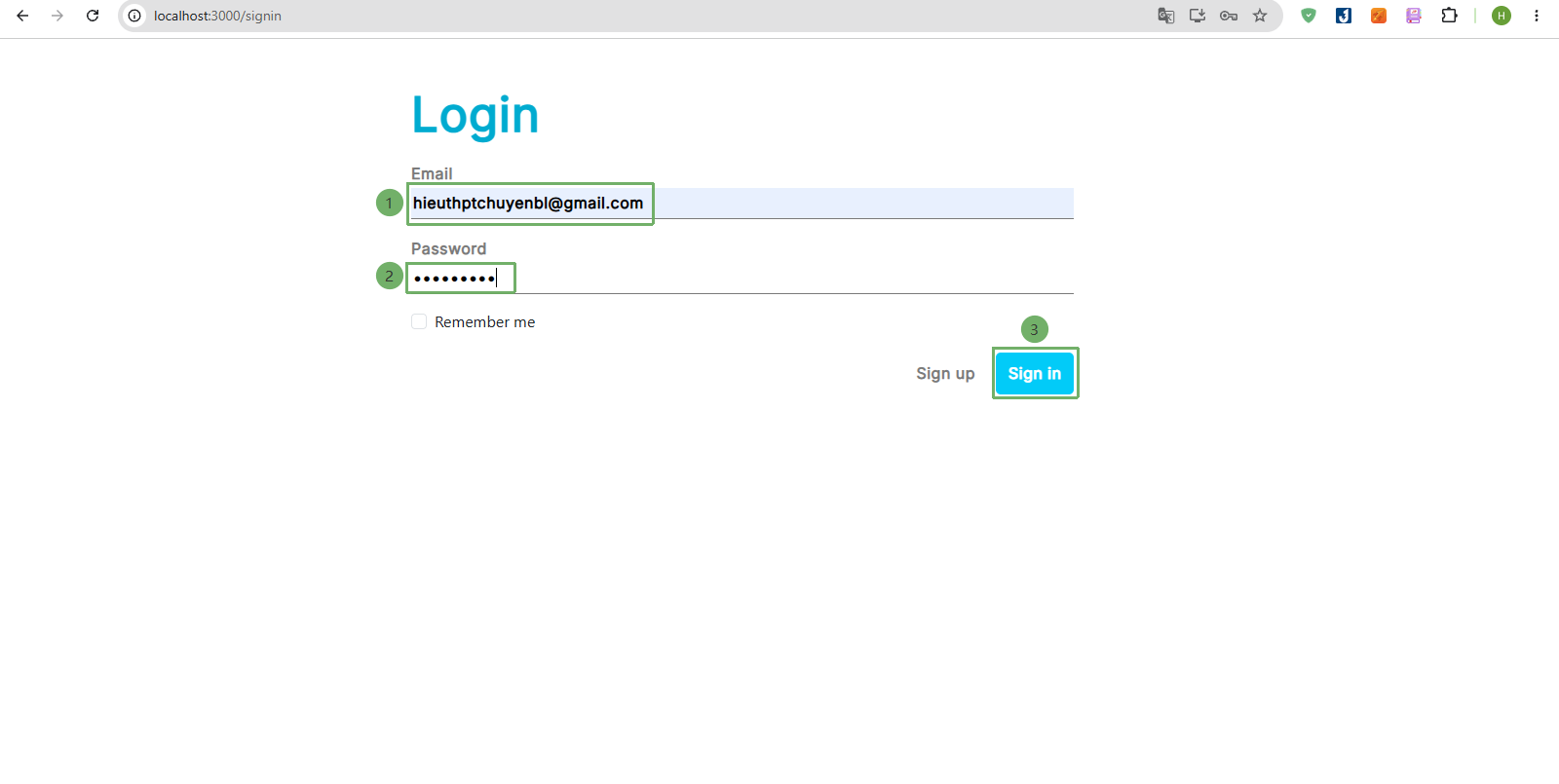
- You have signed in successfully with the new password.